Our chat widget had one job, and it did it well: a visitor asks a question, the assistant answers from the help center and cites the article it used. Then the visitor clicks the citation, and the widget lets them down. The page navigates, or a new tab opens, and the conversation that produced the answer is now somewhere behind them.
The click that should have been the best moment of the exchange was the one that ended it.
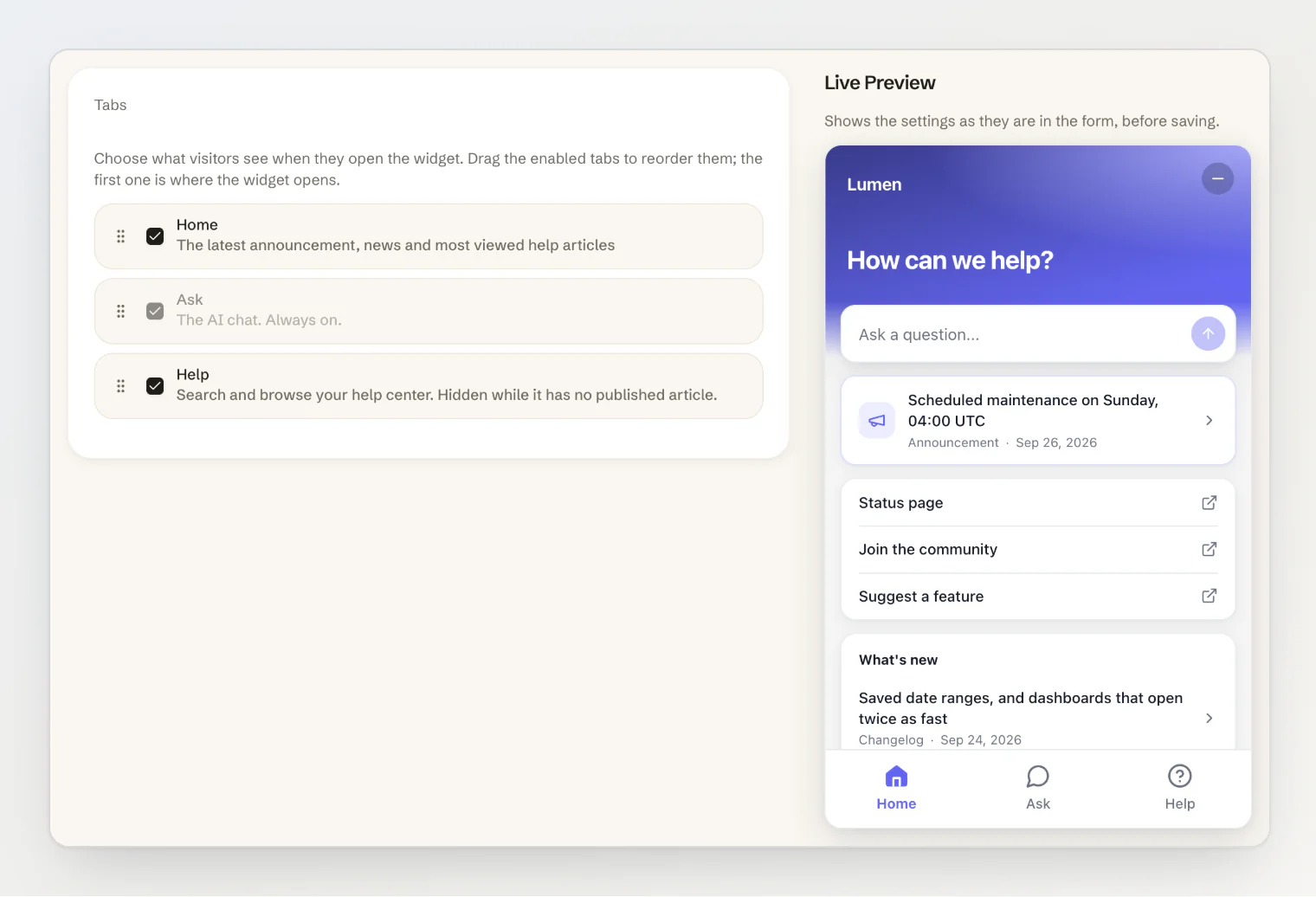
So we rebuilt the widget. It is no longer only a chat: it has three tabs — Home, Ask and Help — and an article reader. It shipped today, and these are the rules we built it by.
1. An article opens where the question was asked
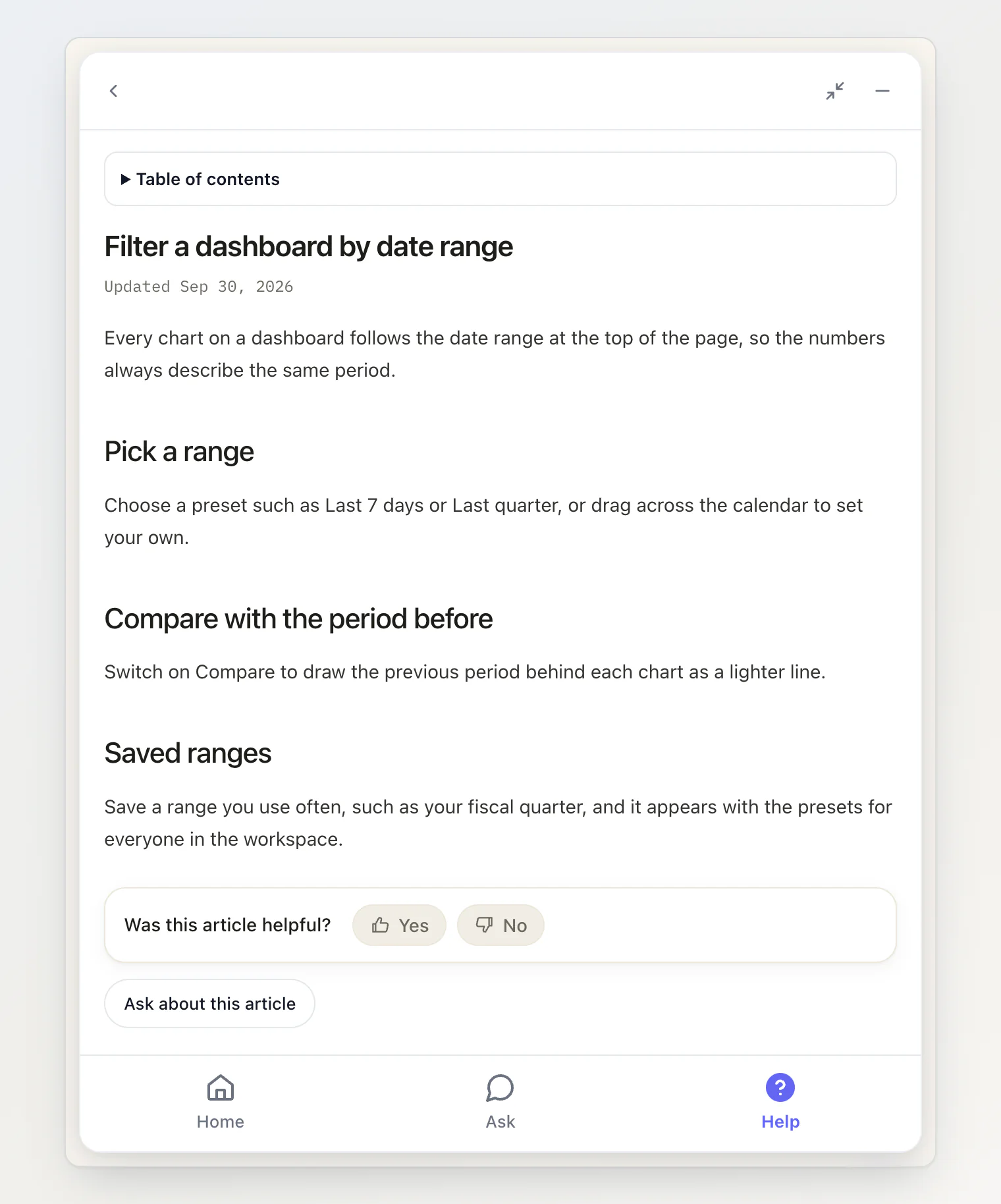
A source under an answer, a link inside one, an article in a list: every one of them now opens inside the widget, in a reader with a back button. The page behind it does not move, and neither does the conversation.
The reader is the help center's article page at widget size: a table of contents, the same "Was this helpful?" vote, and an Ask about this article button that carries the article's title into the chat. A blog post or a changelog entry opens the same way and gets reaction buttons instead of the vote.
If your site already handles source clicks itself, nothing changes: your handler still wins, and the reader stays out of the way.
2. Not every visit starts with a question
An empty chat asks the visitor to do the hardest part first: put the problem into words. Plenty of people open a support widget to look around — to see whether something is broken, what changed, or whether there is an article with roughly the right title.
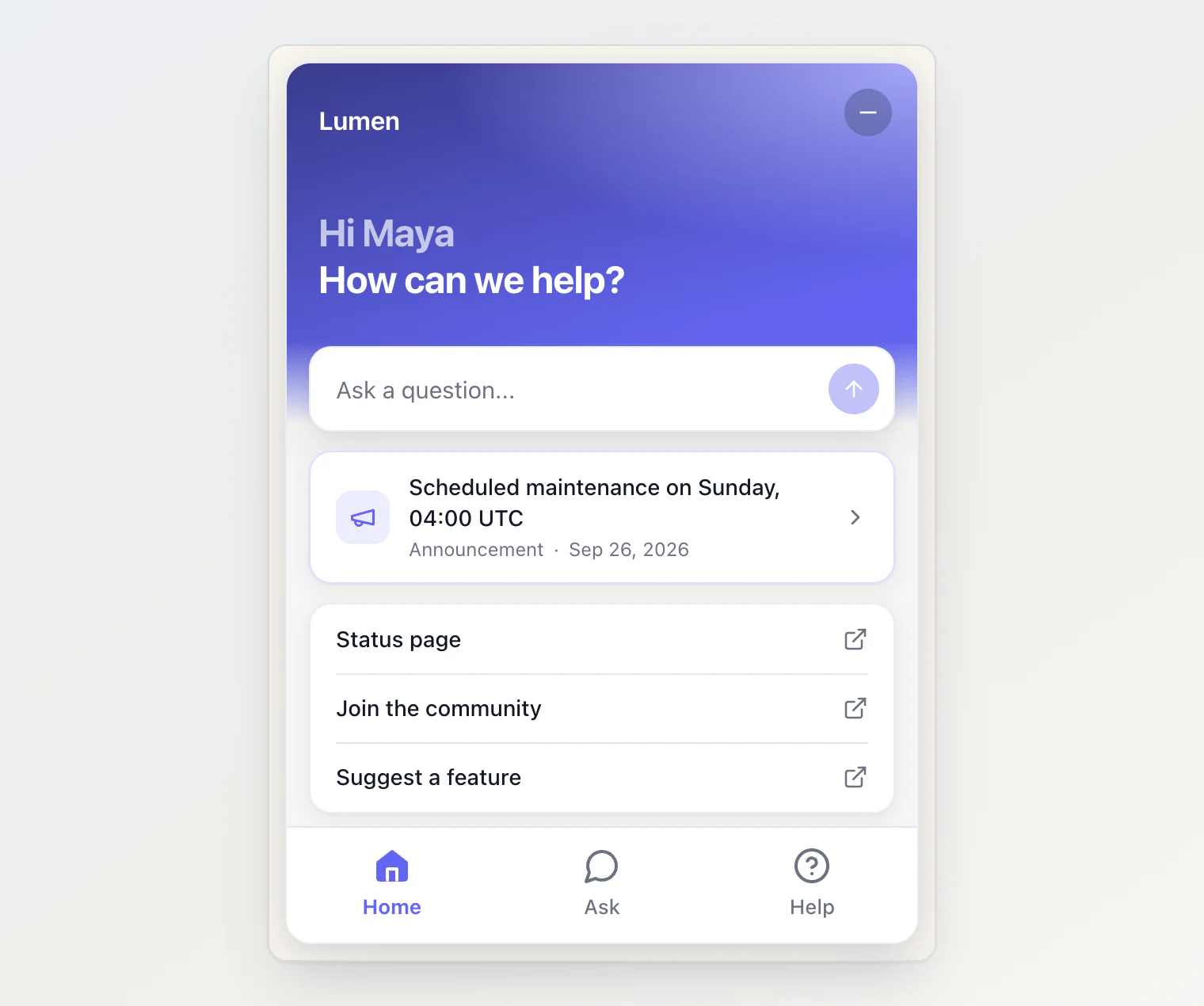
Home is for them. It shows your latest announcement, your own links, the newest changelog entries and blog posts, and the most viewed help articles, with a question box at the top for the people who do know what to ask. Help is the help center itself: a search box and your collections, each with its article count.
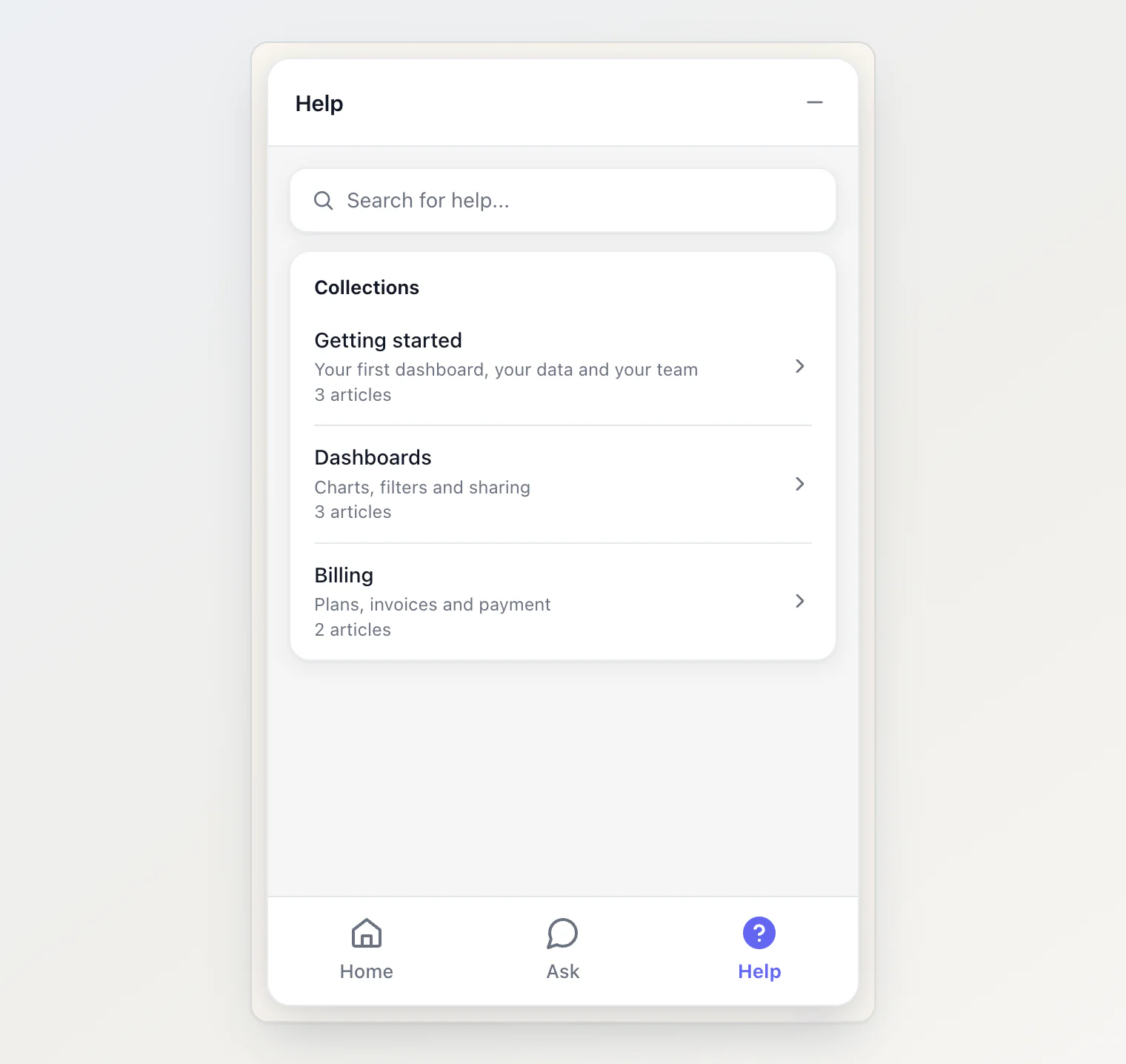
None of it is new content. Home and Help are built from what you already publish, and a list with nothing in it is left out rather than shown empty.
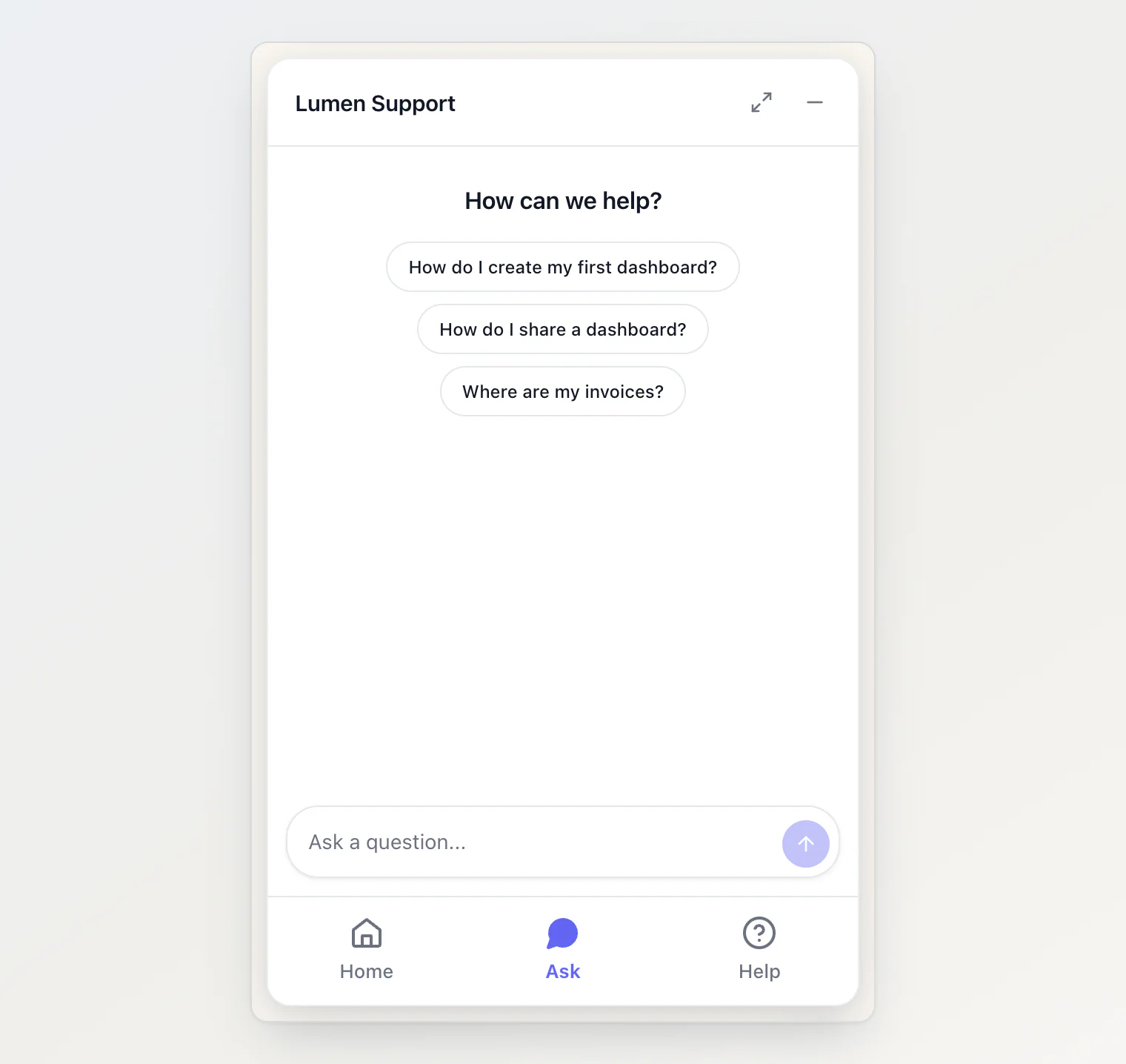
Ask is the chat it always was, with your greeting and a few suggested questions for a first tap.
3. Any link on your page can open an article
The best place for help is next to the thing it explains: a question mark beside a settings field, a "How does billing work?" link on the pricing page. Until now that link had to go somewhere else.
Give any element one attribute, and a click opens the article in the widget:
<a href="/help/getting-started" data-kookee-article="getting-started">How to get started</a>Two details matter here. The href stays, so the link still works when the widget is blocked or has not loaded yet. And a click with Ctrl, Cmd or Shift held, or with the middle mouse button, is left alone: someone who asks for a new tab gets a new tab. The full rules are in Open help articles inside the widget.
4. The words live in the dashboard, the look lives in your code
We went back and forth on this one. A widget has two kinds of settings, and they want to live in different places.
What it says — its tabs, title, greeting, suggested questions and links — changes often and is rarely a developer's call. That is saved in the dashboard, on the Customize tab, with a live preview, and a saved change reaches your site within about a minute with no deploy.
How it looks — theme, position, accent color, launcher — is not stored at all. It stays in the snippet on your site. A look fetched from a server arrives after the launcher has already been drawn, so it flashes; and the same project often runs on more than one site that should not look the same. The dashboard still helps: the Installation tab is a small builder with a preview that writes the snippet for you.
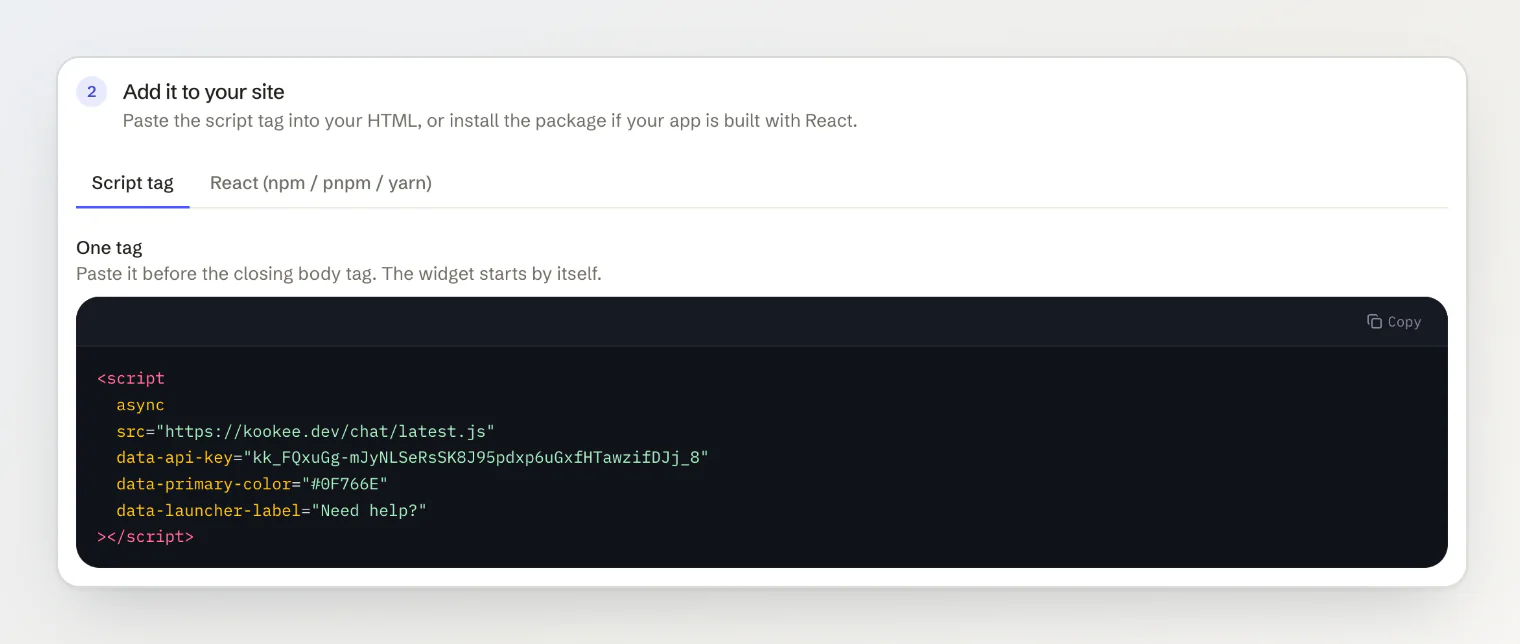
Where the two overlap, code wins, key by key. A site in several languages passes translated texts in its code and lets the dashboard decide the rest.
5. The settings request must never be the reason the widget is down
Saved settings mean the widget now asks the server for them, and a new request is a new way to fail. So it gets as little power as we could give it:
It is made once per page load, and the browser keeps the answer for a minute.
It is not counted against your monthly API quota. A settings lookup on every page view is not what a quota is for.
If it fails, the widget falls back to the plain chat it was before. A visitor sees fewer tabs, never an error.
What we left out
This is not a live chat. No agent is waiting on the other side: the assistant answers from your articles, and your instructions tell it where to send people when it cannot.
It also does not switch itself on. Every widget already installed stays a plain chat until you tick the tabs in the dashboard.
Getting it
The script tag picks it up with no change to your site. In React, update to @kookee/react 1.11.0 and @kookee/sdk 1.11.0. Then open Site widget → Customize in your project and switch the tabs on — Add Home and Help tabs to your widget walks through it, and Install the site widget on your website covers a first install.