Claude, ChatGPT and VS Code connect to Kookee's MCP server by signing in. You give the app one URL, it opens a Kookee page, and you sign in and choose what the app may do. There is no token to create or paste, and a connector you add in Claude works in Claude on the web, on the desktop and on your phone.
The connector URL is the same for everyone:
https://api.kookee.dev/api/mcpYou also find it, with a copy button and the steps for each app, under Connect → MCP server in any of your projects.
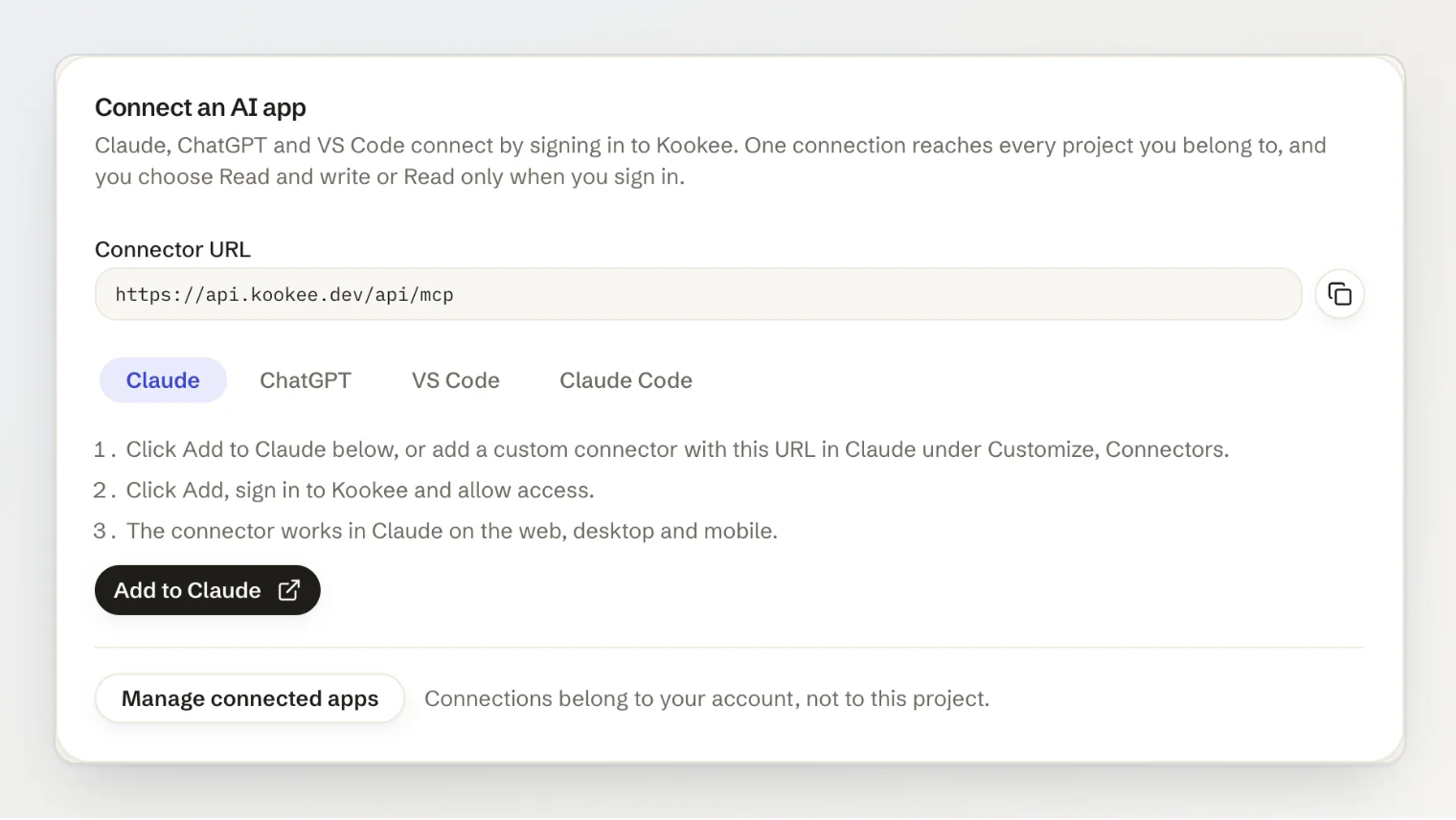
Connect Claude
Open Connect → MCP server and click Add to Claude. Claude opens its Add custom connector dialog with the name and the URL filled in. You can also open the dialog yourself: in Claude, go to Customize → Connectors, click +, choose Add custom connector and paste the URL.
Leave Advanced settings empty. Kookee does not need an OAuth client ID or secret from you.
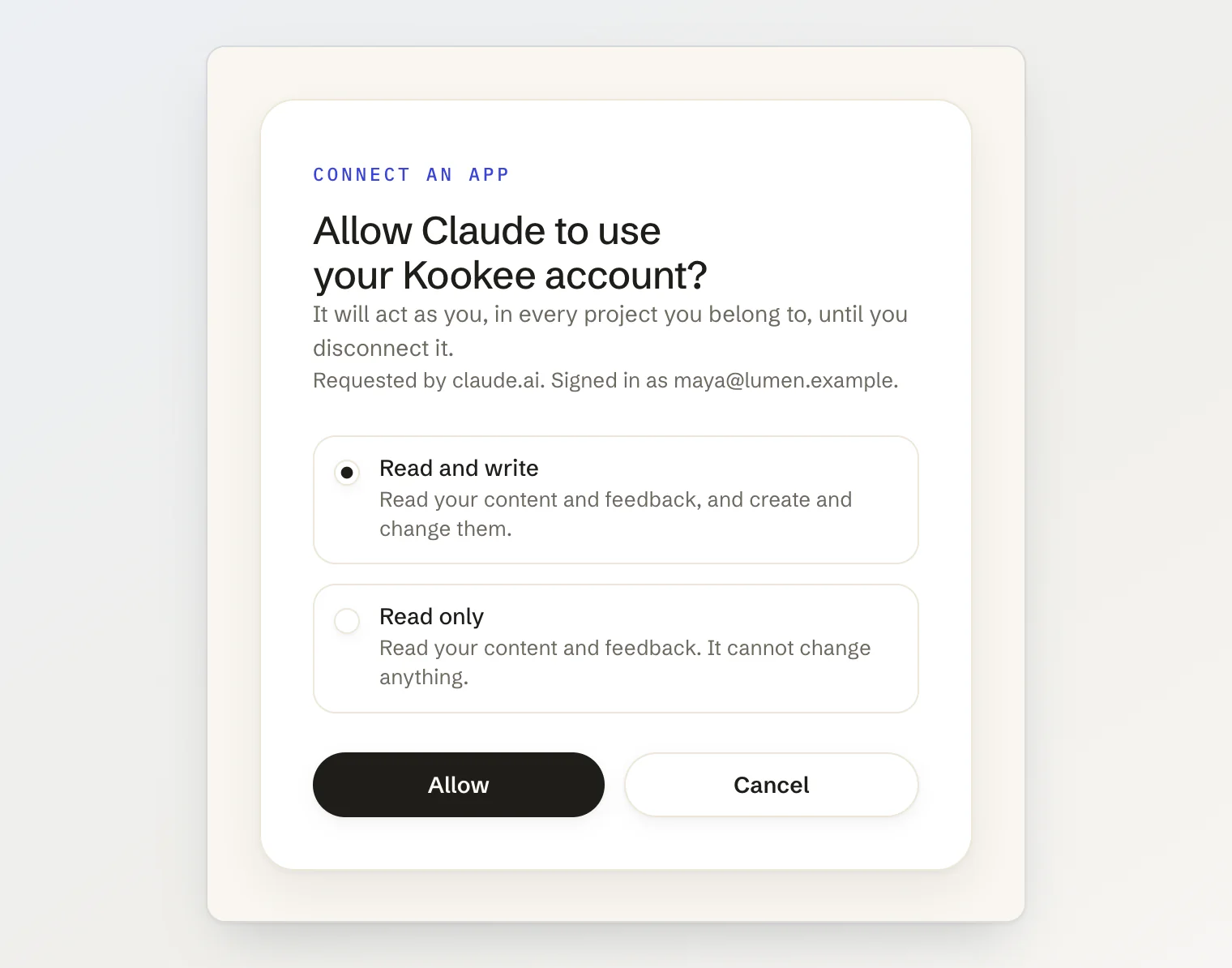
Click Add, then Connect. Claude opens a Kookee page. Sign in, or create an account if you do not have one yet.
Choose Read and write or Read only, and click Allow. You are sent back to Claude, and Kookee's tools appear in the connector's settings.
On a Claude Team or Enterprise plan, an owner adds the connector once, under Organization settings → Connectors. Each member then connects it and signs in with their own Kookee account.
Connect ChatGPT
ChatGPT accepts custom MCP servers in developer mode, on the Plus, Pro, Business, Enterprise and Education plans.
In ChatGPT on the web, open Settings → Apps → Advanced settings and turn on Developer mode.
Click Create app, paste the URL above, and choose OAuth if ChatGPT asks how to authenticate.
ChatGPT opens a Kookee page: sign in and allow access.
Connect VS Code
Open the Command Palette and run MCP: Add Server.
Choose HTTP and paste the URL.
When VS Code asks to sign in, allow it. A browser tab opens on Kookee, where you sign in and allow access.
Connect Claude Code
Claude Code can sign in as well, so on your own machine you do not need a token:
claude mcp add --transport http kookee https://api.kookee.dev/api/mcpThen run /mcp in Claude Code, pick kookee and choose to authenticate. A browser tab opens on Kookee.
For a .mcp.json the whole team commits, a personal token is still the better fit. See Managing your content from an AI assistant (MCP).
Read and write, or Read only
You choose on the Kookee page, when you allow the app, and the choice applies to that app only. The page offers it whenever the app asks for write access, as Claude does, and Read and write is selected unless you pick the other option.
Read and write: the app reads your content, drafts included, and your feedback board, and can create, edit and publish entries, add and triage feedback posts, and post comments.
Read only: the app reads everything, but it is not offered the write tools at all, so it cannot change anything and does not try.
To change the access later, disconnect the app (see below) and connect it again. Kookee asks again, and you pick the other option.
One connection for all your projects
A connection belongs to your Kookee account, not to a project. It reaches every project you are a member of, with your role in each one, so you never add one connector per project. Claude would not let you anyway: it refuses a second connector with the same URL.
If you belong to one project, the assistant works in it without asking. If you belong to several, name the project in your request:
In the Lumen project, list the five most-voted feedback posts that are still open.
The assistant can call list_projects to see your projects and their slugs, and asks you when it cannot tell which one you mean. When you are removed from a project, your connected apps lose access to it on their next request.
See and disconnect connected apps
Your connected apps are listed in your account settings: open your account menu (your avatar, top right), then Settings → Security → Connected apps. Each one shows its access and the day you connected it. The Manage connected apps button on the MCP server page opens the same list.
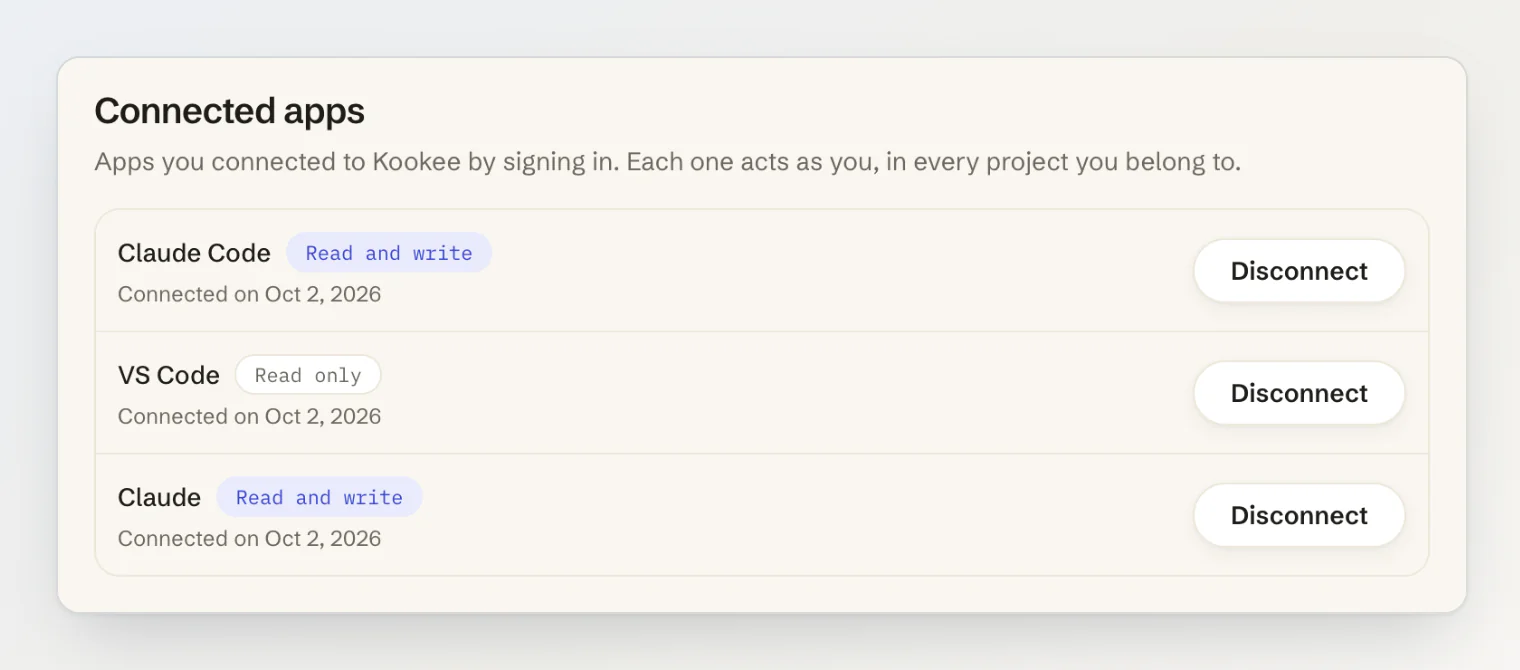
Disconnect takes effect at once: the app's next request is refused, and it asks you to connect again. Changing or resetting your Kookee password disconnects every app.
What gets recorded
A connected app works as you, and every change it makes is recorded under your name. On the feedback board, the column moves, category and assignee changes and comments it makes are marked via MCP, exactly like those made with a personal token. Entries it creates stay drafts unless you ask it to publish.
What it cannot do
Upload images. Uploading needs an assistant that can run commands on your computer. Claude and ChatGPT in the browser or on your phone write entries without images, and you add them in the dashboard. Claude Code can upload; see Uploading images and files from an AI assistant.
Delete. There is no tool to delete or archive entries, categories, tags or feedback posts.
Connect a guest account. Create an account, or sign in to one, first.
Connect Cursor by signing in. Cursor connects with a personal token.
Limits
Requests from a connected app count toward the project owner's monthly API requests and share the per-minute limit of the project they act in, the same as requests made with a personal token. Each write tool can be called up to 60 times a minute per account, across all your projects. Requests that act in no project, such as connecting, listing the tools or listing your projects, are capped at 300 a minute per account.
If something goes wrong
"This sign-in link has expired": the Kookee page was open for too long. Start connecting again from the app.
"This link is not valid": the address was changed or cut short. Start again from the app.
The assistant says a tool does not exist, such as
create_entry: the app is connected with Read only. Disconnect it and connect again with Read and write.MCP_PROJECT_REQUIRED: you belong to several projects and the request did not say which. Name the project. The error lists your projects, and most assistants retry on their own.MCP_NO_PROJECTS: the account is not a member of any project yet. Create a project, or accept an invitation.An app that worked asks you to connect again: it was disconnected, in Connected apps or by a password change or reset. Connect it again.
For errors from personal tokens, see Authentication and permission errors.