Every entry already has built-in fields: a feedback post has a Category, a Column and an Assignee, a changelog entry a Type, a Version and a Link, an announcement a Type. Custom fields add your own next to them, such as a Priority on feedback posts, a Plan for the customer who asked, or a Reviewer on help articles, with a value for each entry.
Custom fields come with Pro and Ultra: up to 5 for each content type on Pro, and up to 25 on Ultra. On Free, the Fields page shows the built-in fields, and New field tells you which plans add your own.
Add a field
Open a module (Blog, Help Center, Changelog, Pages, Announcements or Feedback) and click Manage Fields. On the feedback board it sits next to Columns.
Click New field, give the field a name and choose its type.
Click Create field.
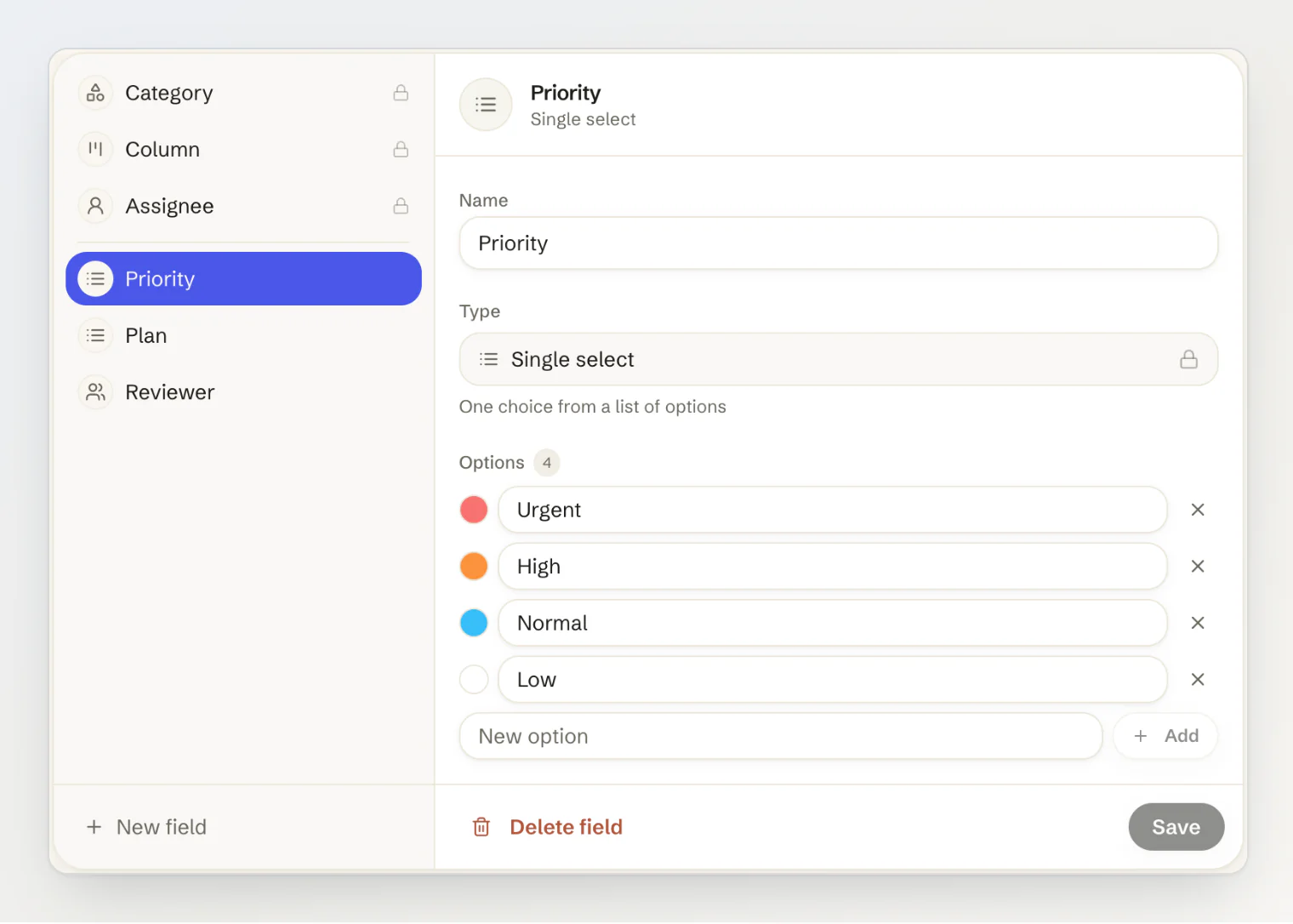
The built-in fields come first, with a lock: their name, type and options are fixed. The columns of a feedback board are managed on the board itself. Any member of the project can add, change and delete custom fields.
Type | Holds |
|---|---|
Text | A single line of text |
Number | A numeric value |
Date | A calendar date |
Checkbox | Yes or no |
URL | A web link |
An email address | |
Phone | A phone number |
Single select | One choice from a list of options |
Multi-select | Several choices from the list |
Member | People from this project |
A field keeps its type: to change it, create a new field.
Options, people and order
Options. A single or multi-select field lists its options under the type. Type an option and press Enter, click the square beside it to give it a colour, rename it in place, or remove it with ×, then click Save. Removing an option clears it from every entry that had it. A field holds up to 200 options on Pro and 1,000 on Ultra.
People. A member field names people from your project. Allow multiple values is on for a new member field; turn it off for a field that names one person, such as a reviewer. It cannot be turned off while an entry already names more than one. Someone removed from the project, or banned, is taken off every member field.
Order. Drag the fields in the list to reorder them. Editors and the feedback dialog show them in that order.
Delete. Delete field removes the field and its value on every entry. A feedback post's activity keeps what it recorded about the field.
Fill in values
In the editor of a blog post, help article, changelog entry, page or announcement, the Fields card lists the fields that have a value. Add field adds a row for another one, and the values are saved with the entry when you create or save it.
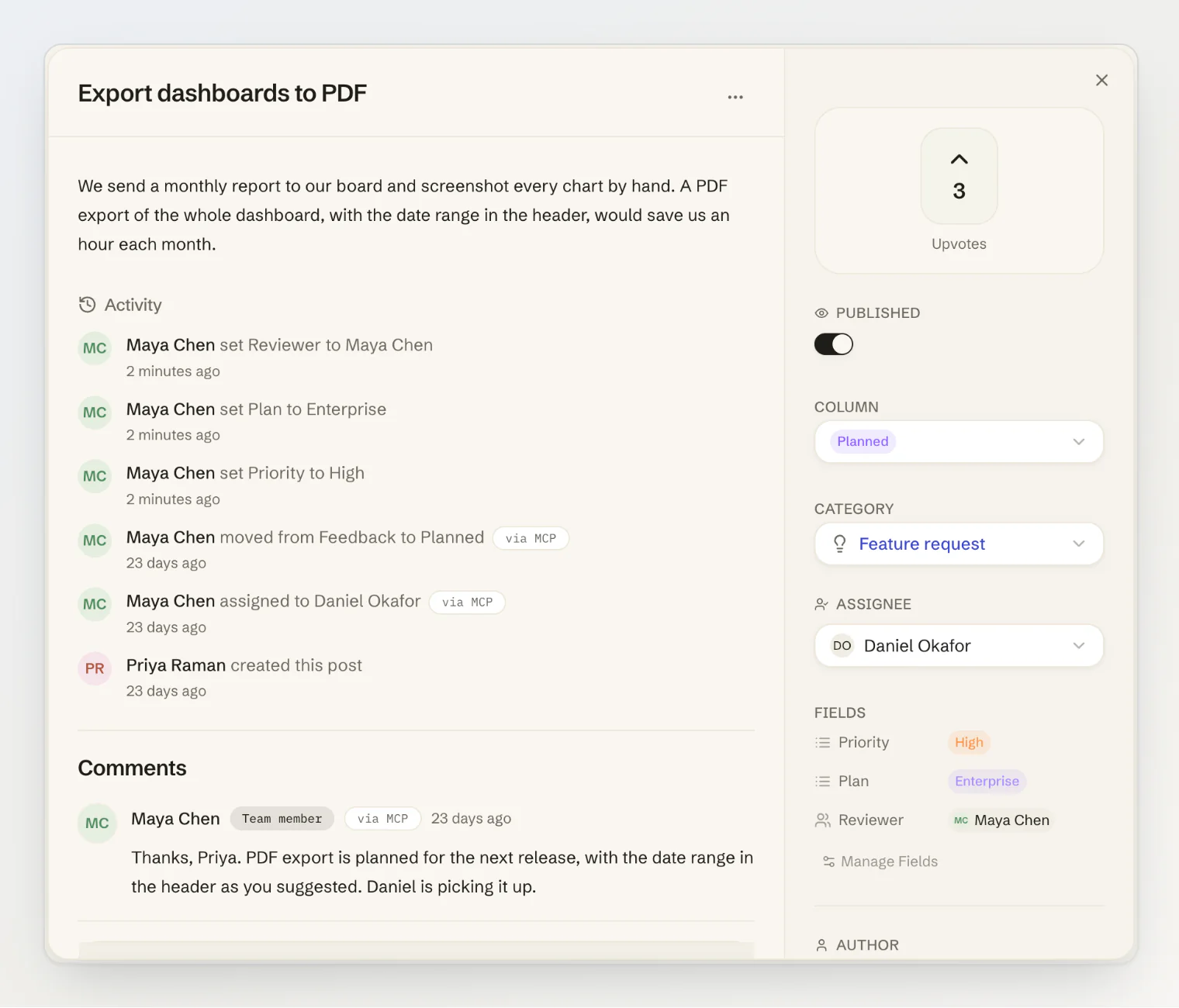
On a feedback post, the values sit under Fields in the dialog's sidebar. Each change is saved at once and recorded in the post's activity, such as "set Priority to High" or "cleared Reviewer".
A new translation starts with the values of the entry it translates. Adding a language in the Translations card opens the new version with them filled in, and a translation made by an AI assistant copies them too.
Find feedback by its fields
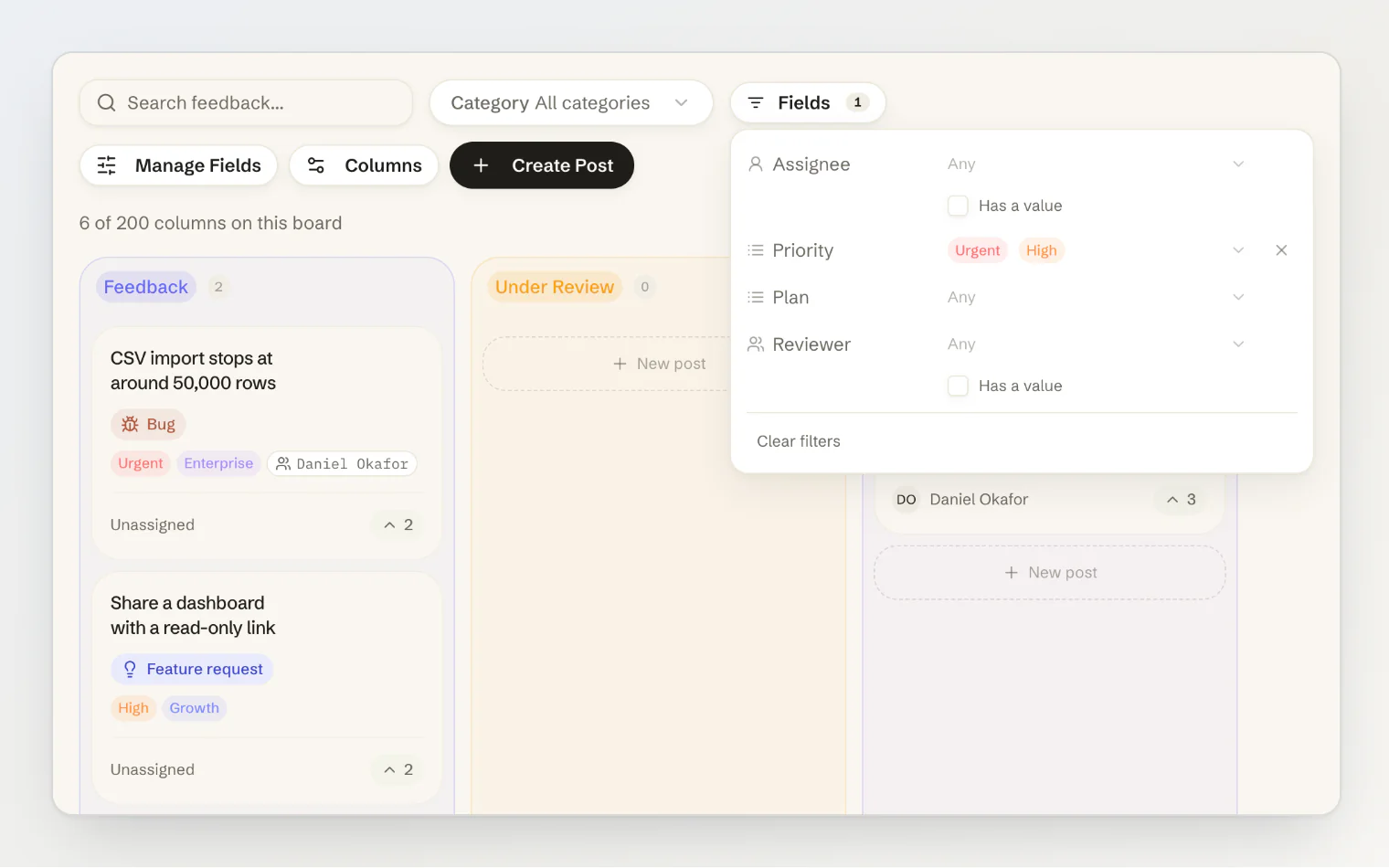
On the feedback board, Fields next to the category filter filters posts by the assignee and by every custom field:
Single and multi-select fields: any of the options you pick.
Member fields, the assignee among them: any of the people you pick, or Has a value.
Checkbox: checked.
Text, URL, email and phone: contains what you type, or Has a value.
Number and date: a range, with either end left open.
You can filter by up to 10 fields at once, and Clear filters removes them all. The filter is part of the page address, so a link to the board opens it filtered. Each card shows up to three values under its title, and +N for the rest.
What your site can read
A field on a blog post, help article, changelog entry, page or announcement reaches the public API and the SDK while Include in the public API is on, and it is on for a new field. Turn it off for a field only your team should see, such as internal notes: its values stay in the dashboard.
Custom fields on feedback posts and member fields are never public, so the switch is not offered for them. Who a feedback post is assigned to is not public either: the public API returns assignee: null.
Public fields arrive in each entry's fields array, next to the built-in ones. A custom option has no key, so match it by its option id in value, which stays the same when you rename the option. The generic Entries module covers reading and filtering fields.
From an AI assistant
list_fields reports a type's fields and their options. create_entry and update_entry set field values by name, and so does update_feedback for a feedback post. list_feedback filters posts by the assignee and by field values. See Triaging feedback from an AI assistant.
Limits
Free | Pro | Ultra | |
|---|---|---|---|
Custom fields per content type | — | 5 | 25 |
Options per select field | — | 200 | 1,000 |
Creating a custom field on Free is refused with ENTRY_FIELDS_NOT_IN_PLAN, and one more than the plan allows with FIELD_LIMIT_REACHED. Rate limits, plans and error handling lists every limit.
Continue reading
Triaging feedback from an AI assistant: have an assistant move, assign and tag feedback posts for you.
The generic Entries module: read entries and their fields from the SDK on your own site.
Rate limits, plans and error handling: what each plan allows, and what happens when a limit is full.