Kookee runs an MCP server. Point an AI assistant at it and the assistant can read every entry in your project, including drafts, and your feedback board. With write access it can also create and edit content and triage feedback on your behalf.
The practical version: you finish a release, and instead of opening the dashboard you say "write a changelog entry for what I just shipped" in the terminal where you already are.
Two ways to connect
Sign in. Claude (on the web, desktop and mobile), ChatGPT, VS Code and Claude Code connect with a URL: you sign in to Kookee and choose the access there. One connection reaches every project you belong to. See Connecting Claude, ChatGPT or VS Code to Kookee.
A personal token. For Cursor, scripts and CI, and for a
.mcp.jsonthe whole team commits. A token works in one project. The next two sections are about tokens.
Create a token
Every member creates their own token. In your project sidebar, open Connect → MCP server and click Create token in the Personal tokens card. Name it after the computer or agent that will use it, and choose its access:
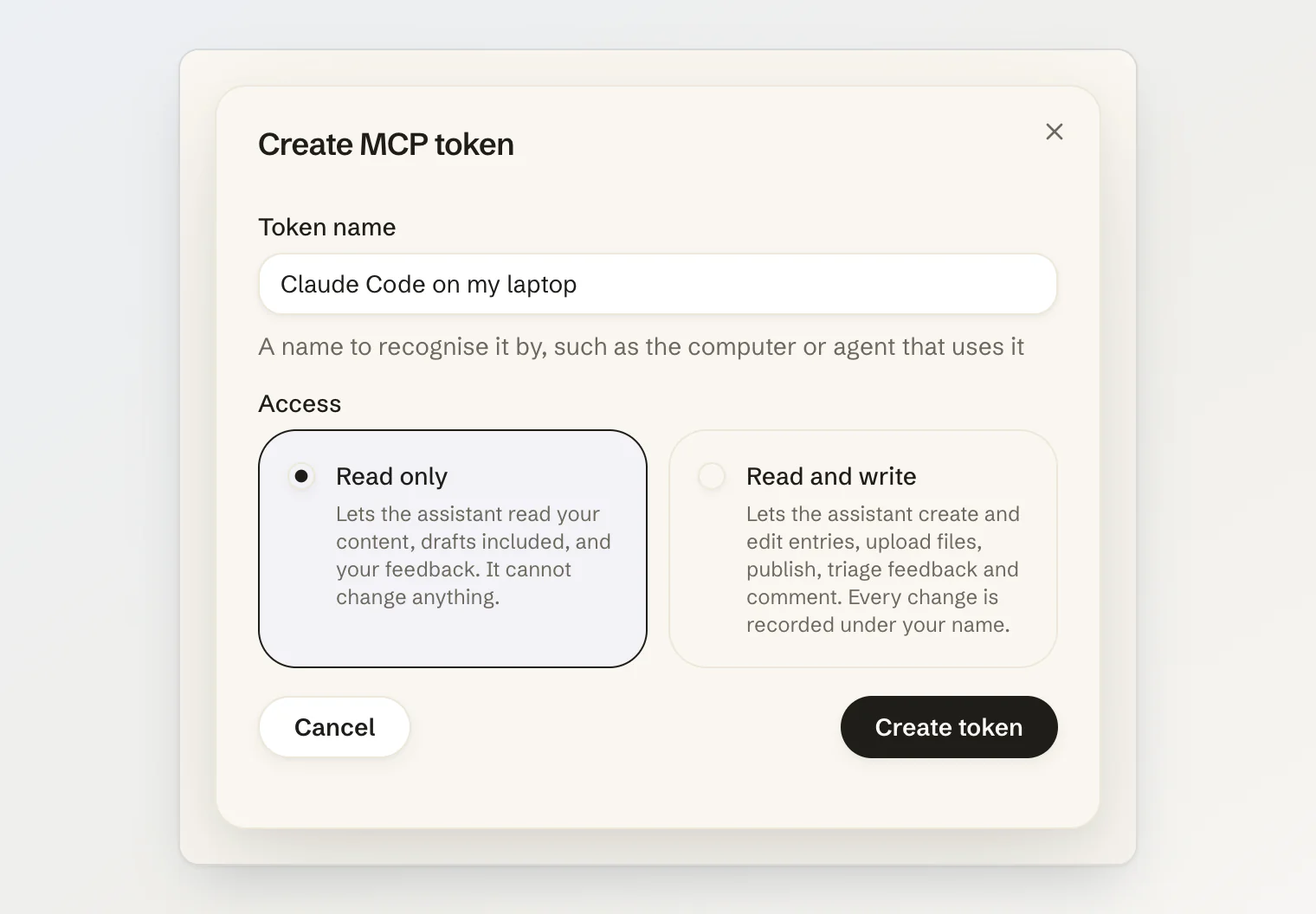
Read only — the default. The assistant reads your content, drafts included, and your feedback board, and cannot change anything. A read-only token is not even offered the write tools.
Read and write — the assistant can also create, edit and publish entries, upload files, add and triage feedback posts, and post public comments. It can also open, update and publish incidents on your status page.
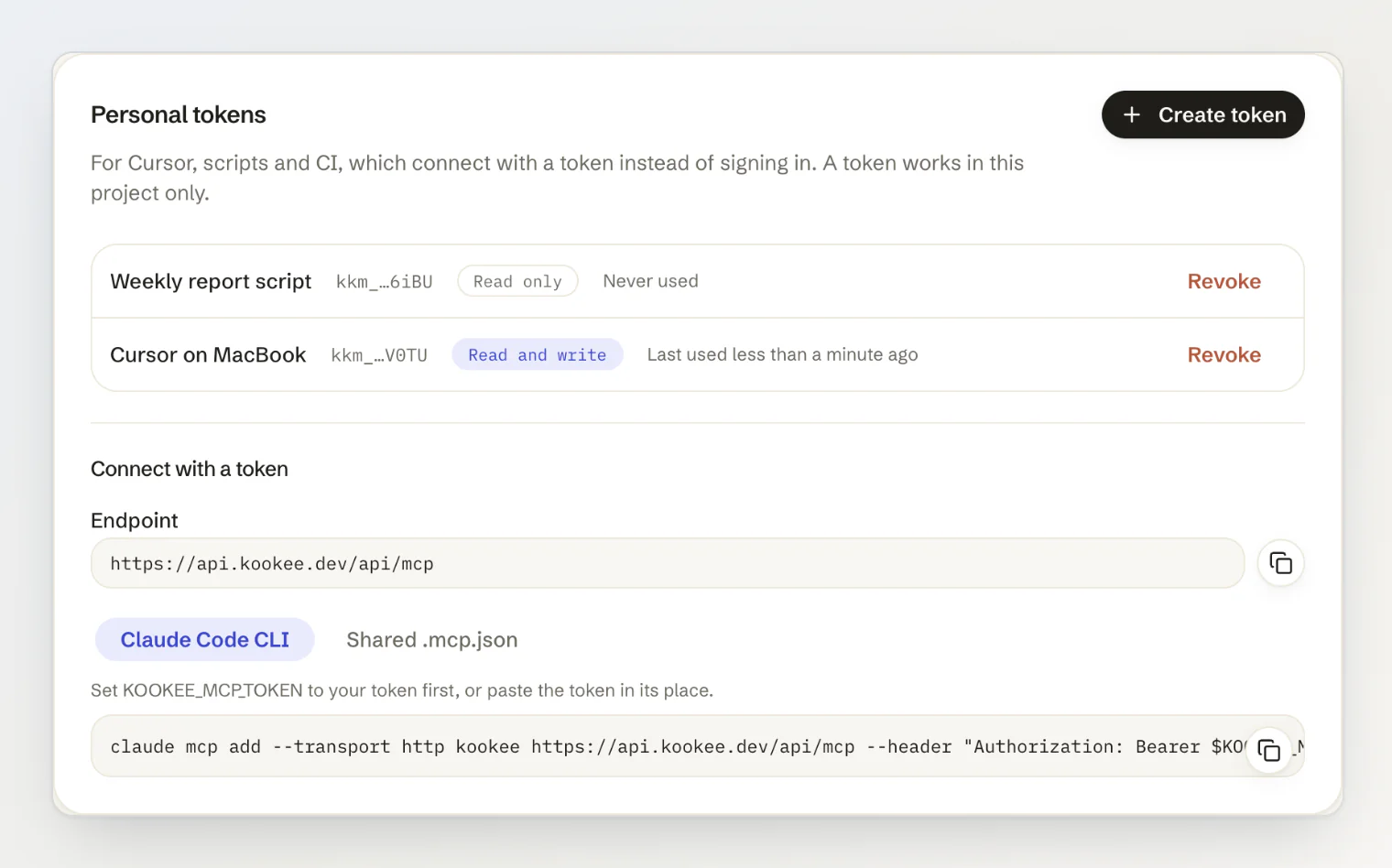
The token is shown once, in the dialog that creates it. Copy it then: from then on the list shows only its last four characters, its access and when it was last used.
The assistant works as you: with your role in the project, and with every change recorded under your name and marked via MCP. Treat the token like a password — never in client code, never in a repository. Give each assistant its own token, so you can revoke one without touching the others.
Connect a client
The Personal tokens card shows the commands under Connect with a token, and right after you create a token the dialog shows them with the token already filled in.
Claude Code
claude mcp add --transport http kookee https://api.kookee.dev/api/mcp \
  --header "Authorization: Bearer $KOOKEE_MCP_TOKEN"
Set KOOKEE_MCP_TOKEN to your token first, or paste the token in its place. Claude Code keeps it in your local settings, not in the repository.
A shared .mcp.json
Commit this at your project root to give the whole team the same setup. It holds no secret: each teammate sets KOOKEE_MCP_TOKEN to their own token.
{
  "mcpServers": {
    "kookee": {
      "type": "http",
      "url": "https://api.kookee.dev/api/mcp",
      "headers": { "Authorization": "Bearer ${KOOKEE_MCP_TOKEN}" }
    }
  }
}
Cursor reads the same configuration from .cursor/mcp.json, and the variable as ${env:KOOKEE_MCP_TOKEN}.
A token binds the connection to one project. The assistant never picks a project and no tool takes a project argument — if you work across several, add one entry per project under a different name, or connect by signing in, which reaches all of them.
Restart the client after adding the server, or after switching to a token with different access. Most MCP clients read the tool list once, when they connect.
What the assistant can do
Read (every token) — get_current_project describes the project, its entry types and its team members. list_entries walks any module including drafts, get_entry returns a full body as markdown, search_entries does meaning-based search across published content, and list_fields, list_categories and list_tags report the vocabulary of your project. list_feedback, get_feedback, get_feedback_history and list_comments read the feedback board. A connection made by signing in also gets list_projects, and every other tool takes an optional project.
Write (read-and-write tokens) — create_entry takes a markdown body, for every type except feedback, which has its own tool (below). To change an entry that already exists, edit_entry_content replaces text in place and leaves every block it does not touch byte-identical — that is the one to reach for. replace_entry_content overwrites a whole body and is only for a rewrite you actually asked for. update_entry handles everything that is not the body: title, slug, excerpt, fields, tags, SEO. publish_entry and unpublish_entry flip an entry between draft and published.
Upload — create_upload and confirm_upload put an image or a file from your machine into your project; the assistant then embeds it in an entry or a comment, or sets it as the cover. This needs an assistant that can run commands, such as Claude Code or Cursor. See Uploading images and files from an AI assistant.
Organize — categories can be created, renamed and reordered; tags created and recolored.
Feedback — create_feedback adds a post to the board as you, published at once and with your vote. move_feedback moves a feedback post between board columns, update_feedback sets its category, assignee and custom fields, and create_comment replies to a thread. See Triaging feedback from an AI assistant.
Status page — get_status works with every token. It reads your status page as your team sees it: each component and what sets its status, the active incidents, upcoming maintenance and drafts with their latest update, and your uptime monitors with their state, last check and uptime over the last 24 hours. With write access, create_incident opens an incident, and update_incident changes its title, impact or affected components, or publishes a draft. post_incident_update posts an update with a new status, and the status resolved closes the incident. A published incident is public and reaches your webhooks and integrations, so the server tells assistants to write incidents for your customers and to leave internal detail out.
Structured fields
A changelog entry has a Type and a Version. An announcement has a Type. A feedback post has a Category. Your team's own custom fields sit next to them. These are fields, not part of the body, and an assistant sets them by name:
Write a changelog entry for the 1.6.0 release, type it as a feature, and set the version.
Under the hood that is a fields array where each field is named by its slug and each select option by its key. list_fields tells the assistant what those are, so you do not have to. If you are curious what your project exposes, ask it to list the fields for a type.
The same vocabulary filters listings — "show me every bug fix since 1.4" works because changelogType is filterable, and list_feedback filters the board by the assignee and by field values.
Translations
An assistant can translate an entry into any language your project supports:
Translate "Import files into your help center" into German. Leave it as a draft and give me the link.
create_entry with translationOf (the original's id), locale and sourceUpdatedAt (the original's updatedAt) links the translation to the original: it joins the original's translations, takes the original's category in that language, and starts with its field values. It does not take the cover image. A category with no version in that language yet is named in the result, and create_category with translationOf adds it. Each language holds one translation of an entry, and a language the project does not support is refused with LOCALE_NOT_SUPPORTED.
When the original changes, its translations are marked outdated. list_entries with translationOutdated: true lists them, and after the assistant re-translates one, update_entry with markUpToDate: true and the sourceUpdatedAt it translated from clears the mark. If the original changed again in the meantime, the mark stays.
Everything is a draft by default
create_entry makes drafts unless it is explicitly told to publish, and the server instructs assistants to leave them that way unless you ask. Every write returns an editUrl pointing at the entry in your dashboard, so the normal loop is: ask, review in the browser, publish.
create_incident works the same way: an incident stays a draft until you ask for it to be published, and a draft is not public, changes no component and notifies nobody. The result links to the incident in your dashboard.
The exception is create_feedback: a feedback post goes on the board published at once, with your vote.
Publishing is the one place worth being deliberate. "Draft a post about X" and "publish a post about X" are different instructions and the assistant treats them differently.
Edits cannot silently overwrite your work
Both body tools require the assistant to hand back the updatedAt it read from the entry. If anyone changed that entry in between — you in the dashboard, or another assistant — the write is refused with ENTRY_MODIFIED instead of overwriting. The assistant re-reads and retries, so an edit you were making at the same time is never quietly lost.
Seeing what an assistant did
Every change an assistant makes is recorded under the member who connected it. In the dashboard, the activity entries and comments it creates carry a via MCP label, and the assistant's own history tools report the same. Incident updates it posts carry the label too, in the incident's Timeline.
Owners and admins see every member's tokens under All tokens in this project on the MCP server page, with their access and when they were last used, and can revoke any of them:
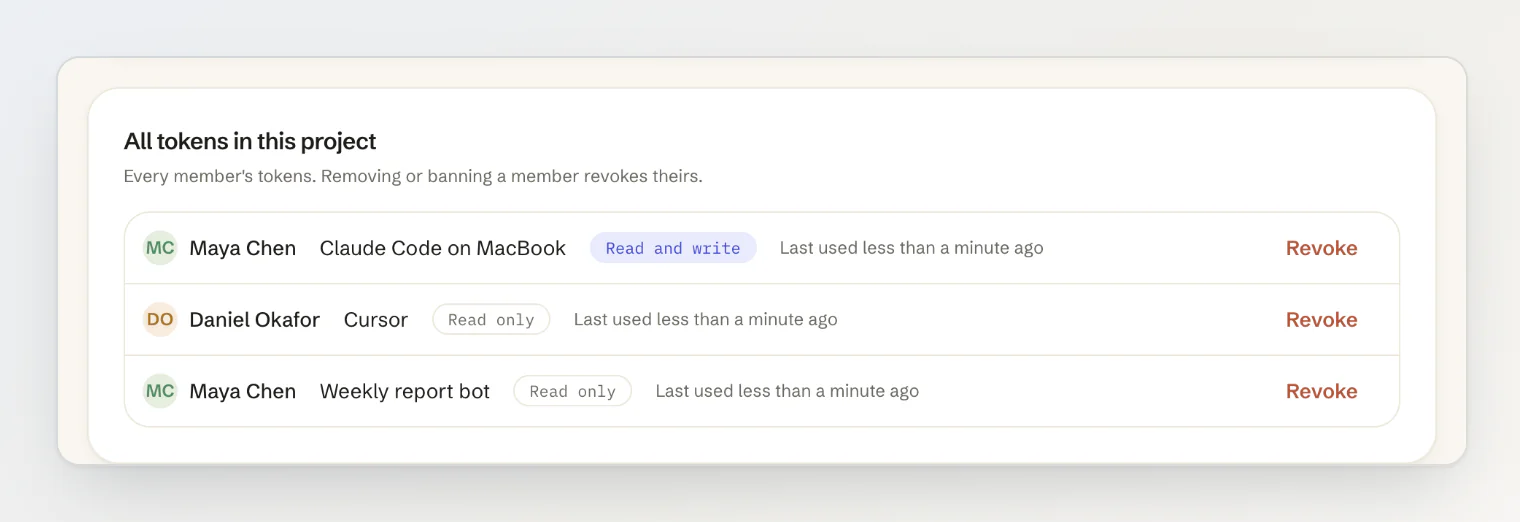
Revoking is immediate: the next request with that token is refused. Removing a member from the project, or banning them, revokes their tokens too.
Apps connected by signing in belong to each member's account rather than to the project. Each member sees and disconnects their own in their account settings, under Security → Connected apps. A member removed from the project loses access to it from those apps as well.
What it cannot do
There is no delete or archive tool, for entries, categories or tags. Uploading needs an assistant that can run commands on your machine; a chat app that cannot, such as claude.ai, writes entries without images, and you add them in the dashboard. Custom entry types your project defines are visible to the assistant but are not addressable — it works with blog, page, help article, changelog, announcement and feedback.
On the status page, there is no tool to delete an incident, to schedule, move or delete maintenance, or to manage components and monitors. Those stay in the dashboard. An assistant can still rename a maintenance, change its components and post updates on it.
Comments an assistant posts are public and appear under your name, exactly like a reply you write in the dashboard. Ask for a reply only when you mean to publish one.
Limits
Each member can hold up to 10 tokens per project.
Each write tool can be called up to 60 times a minute by each member.
MCP requests count toward the project owner's monthly API requests. The per-minute limit from the owner's plan is counted separately from the public API, so a busy assistant cannot slow down your public site.
A first session
Ask for something small and verifiable:
What entry types does this project have, and how many published blog posts?
Then something real:
Read the last three changelog entries, then draft one for version 1.7.0 in the same voice. Type it as an improvement. Leave it as a draft and give me the link.
If a tool answers "not found", the usual causes are an id from another project or a module your project does not have. If the assistant says a tool does not exist, the token is probably read only. Connection errors are listed in Authentication and permission errors.
For how an MCP token differs from an API key, see API keys and security. For the release types an assistant can set, see Working with the Changelog module.