If the answers your customers need already live in documents (a PDF manual, a refund policy in Word, an export from your old help desk, a page someone photographed), import them instead of retyping them. Each file becomes a draft help article, and the AI chat answers from it as soon as it is published.
What you can import
Files | Extensions | Largest file |
|---|---|---|
Markdown |
| 5 MB |
Plain text |
| 5 MB |
HTML |
| 5 MB |
Word |
| 50 MB |
PDF, scanned pages included |
| 50 MB |
Images |
| 20 MB |
A file can never be larger than your plan allows for one upload, which is 25 MB on Free. You can import up to 50 files at a time, and one file can have up to 300 pages and 1.5 million characters.
Older Word files (.doc), spreadsheets and slides are not supported. Save them as .docx or PDF first.
Import files
Open Help Center in your project and switch to the Import files tab.
Drop your files on the drop area, or click Choose files.
Choose the Visibility: Public articles appear in your help center, Chatbot only articles are used only by the AI chat.
If your project has more than one language, choose the Locale the files are written in.
Choose a Category. The list shows the categories in that language, and Create Category adds one.
Turn on Publish clean files automatically to publish every file the content check finds nothing in and that brings no pictures. Leave it off to review every draft yourself.
Click Import.
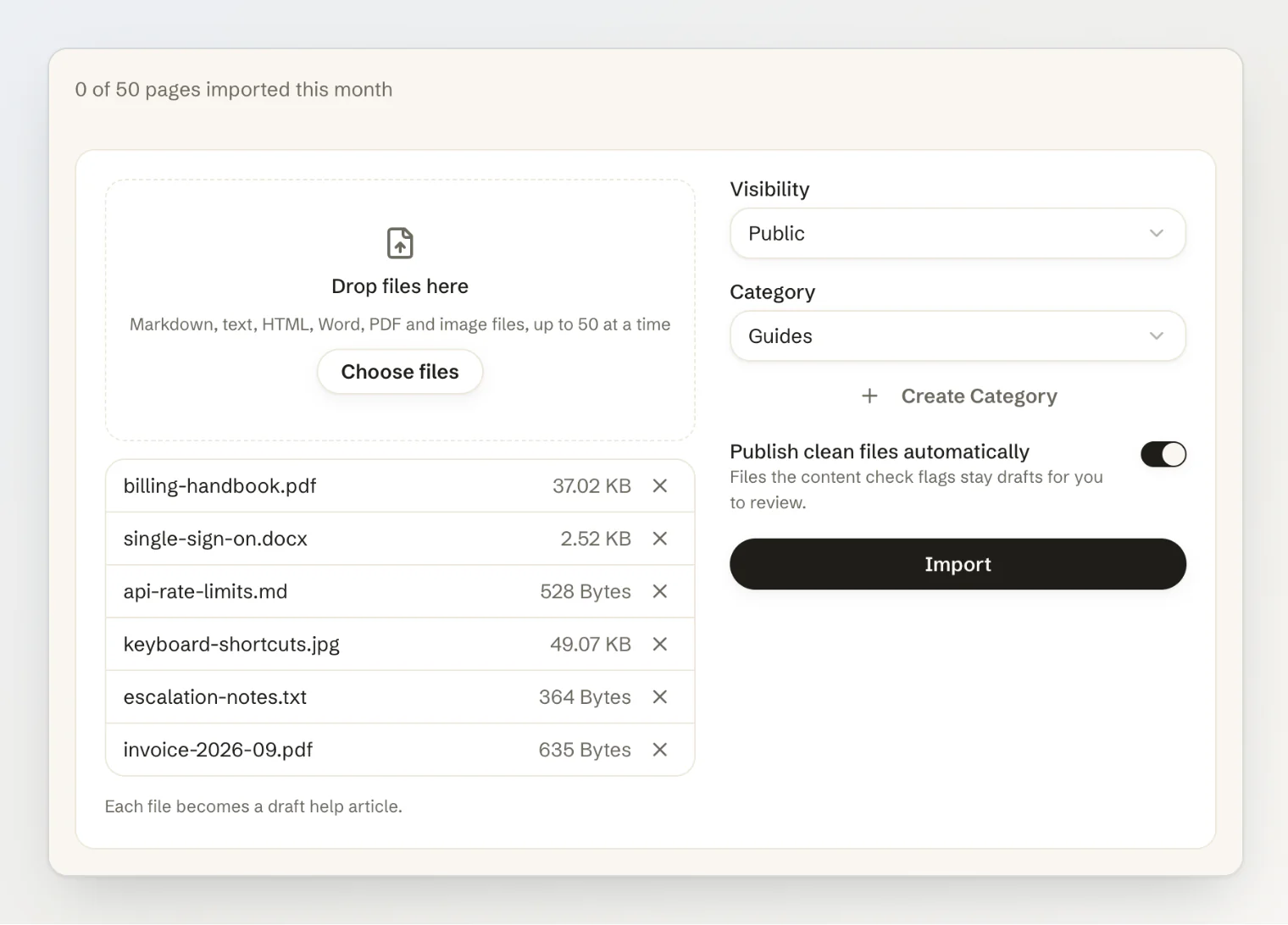
The files upload, the list clears, and your settings stay for the next batch. Any member of the project can import.
Follow the progress
Each file appears in the Import history under the form, with its status:
Queued: waiting for its turn.
Converting: the file is being turned into an article.
Reading scanned pages: an AI model is reading the scanned pages, or the image.
Checking content: the content check runs and the article is created.
Done: Open article takes you to it.
Failed: the reason is shown next to the file.
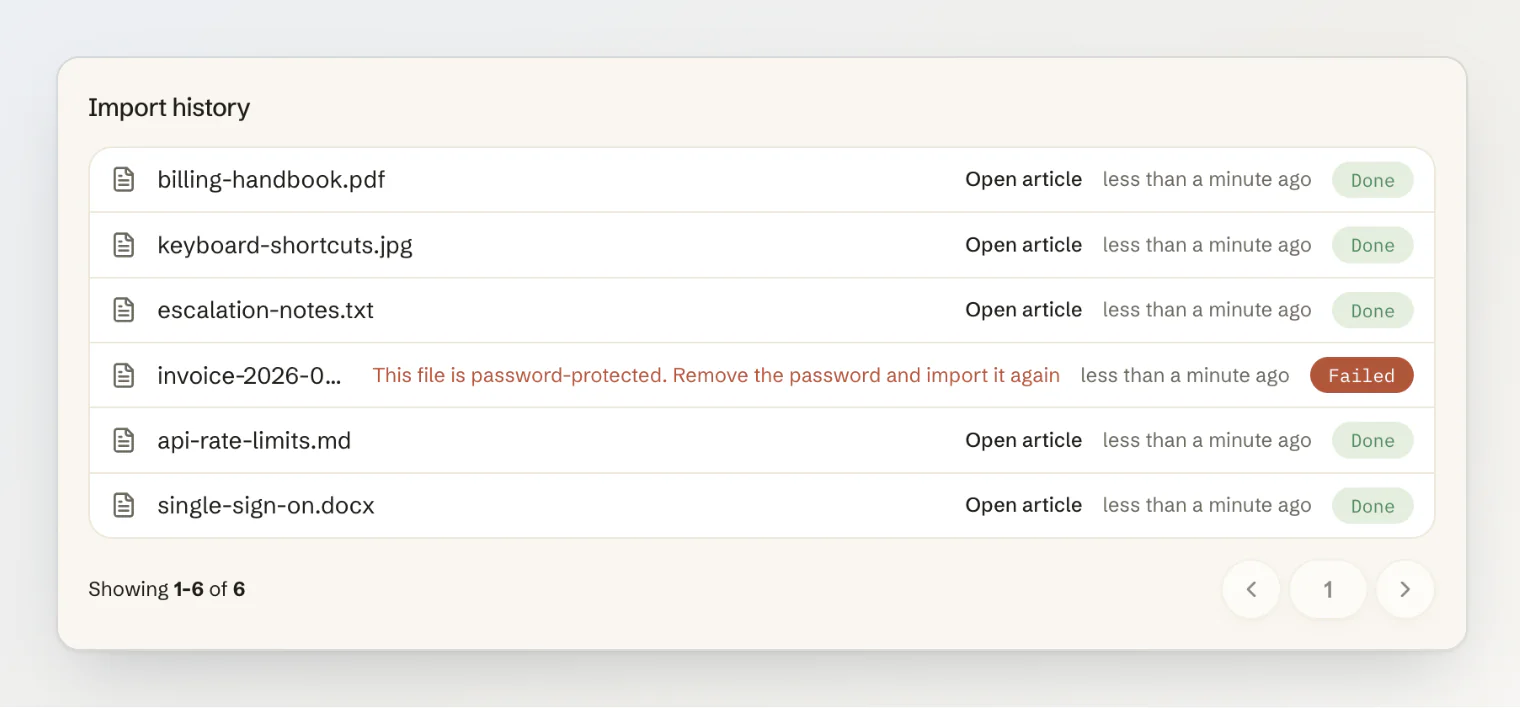
While anything is running, the Import files tab shows a spinner, and the Articles tab updates as each file finishes. Most files take a few seconds.
How each file becomes an article
The title is the heading the file opens with. A file that opens with anything else takes its file name as the title, which you can change in the editor.
Markdown, Word and HTML keep their headings, lists, tables, links and formatting.
HTML keeps the page's text and structure. Scripts, styles and frames are dropped, and nothing in the page runs. A YouTube video embedded the way Kookee's editor saves it is kept; a plain YouTube frame is dropped like any other.
PDF text keeps its structure: headings from larger text, bold and italic, bulleted and numbered lists, and paragraphs joined across lines and pages. Page numbers and running headers are dropped, and a PDF that opens with a heading takes it as its title. Pages with fewer than 50 characters of text, such as scans and photos of paper, are read by an AI model, which writes down their text, headings, lists and tables in place.
Images are read the same way, so a photo of a printed page becomes an article.
Pictures inside a file come along from Word, PDF, HTML and Markdown files: see Pictures inside a file below.
Links to other Kookee articles and @mentions become plain text, since a file cannot say which of your articles or people it meant.
Pictures inside a file
Word, PDF, HTML and Markdown files bring their pictures with them:
Word: the pictures embedded in the file, in place, with their alt text. A picture that is only linked to a file somewhere else is not fetched.
HTML and Markdown: pictures embedded in the file, and up to 20 pictures from the web (
https://addresses), which Kookee downloads. A relative path such asimages/chart.pngpoints at a file Kookee does not have, so that picture is skipped.PDF: the pictures on pages with a text layer, after that page's text. A picture repeated on every page, such as a logo, comes in once, and small decorations are left out. Scanned pages are read as text, so their pictures are not imported.
Each picture is saved again as WebP, at most 2,000 pixels on its longest side, without its camera or location data. A file brings up to 50 pictures. Pictures over 10 MB or 40 megapixels, SVG, and formats other than JPEG, PNG, WebP, GIF, TIFF and AVIF are skipped, and so is a picture from the web that does not load within 10 seconds.
Imported pictures are files of your project: they count toward the project owner's file storage, like a picture you paste into the editor, and once the storage is full the rest are skipped. They cost no import pages. As with any picture in an article, anyone with a picture's address can open it, even while the article is a draft.
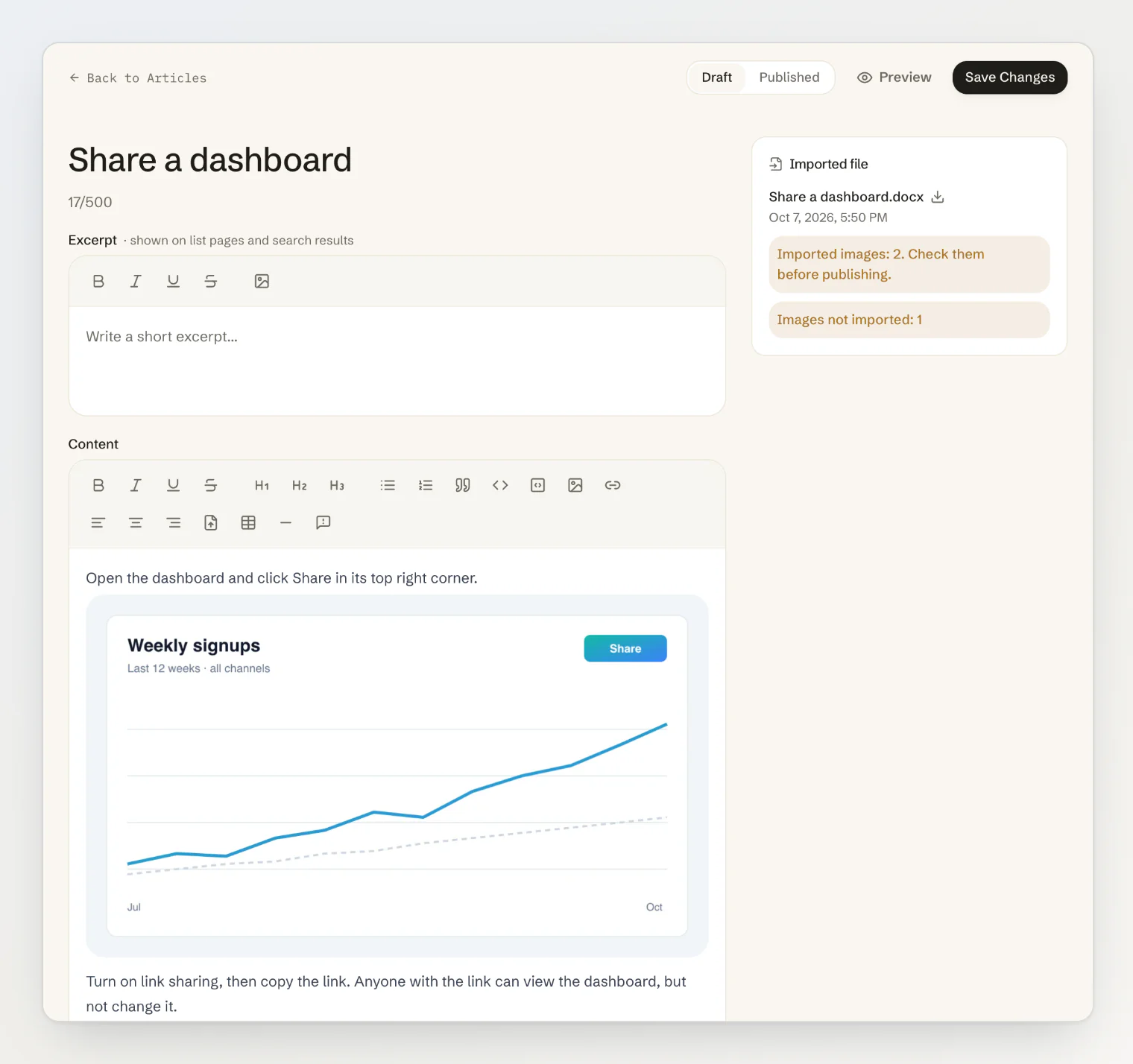
The content check reads text, not pictures, so an article with imported pictures stays a draft, even with Publish clean files automatically on. The Imported file card counts the pictures that came in, as a reminder to look at them, and the ones that could not be imported.
The content check
Every file is read once by an AI model before it becomes an article. It looks for:
Possible conversion problem: garbled or missing text, broken tables.
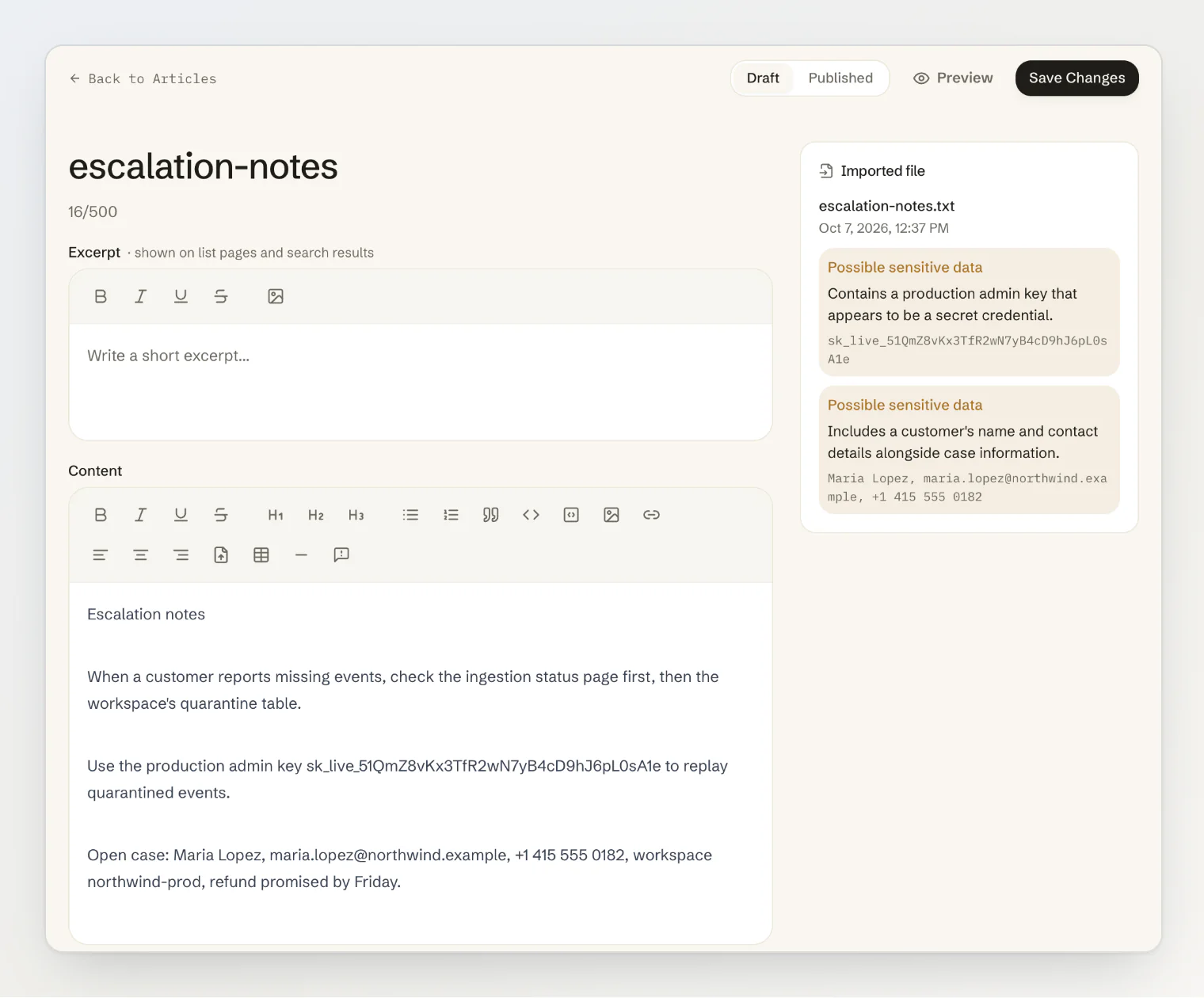
Possible sensitive data: API keys, passwords and tokens, and other people's personal data, such as a customer's name next to their email address or phone number. Your company's own public contact details are fine.
Text addressed to an AI assistant: instructions written for a chatbot rather than for a reader.
What it finds appears in the Imported file card at the top of the article's sidebar, with the passage it is about. The card also counts imported pictures, lists pages that could not be read, and says so when the check could not run. It shows the first three items, and a button such as Show 2 more opens the rest. A draft with anything in that card stays a draft, even with Publish clean files automatically on: fix or remove the passage, then publish.
The content check, and the reading of scanned pages and images, run on an OpenAI model.
Chatbot only is not private
A chatbot-only article does not appear in your help center, but the AI chat answers from it, and quotes it, to anyone who asks. The form says so as soon as you choose Chatbot only.
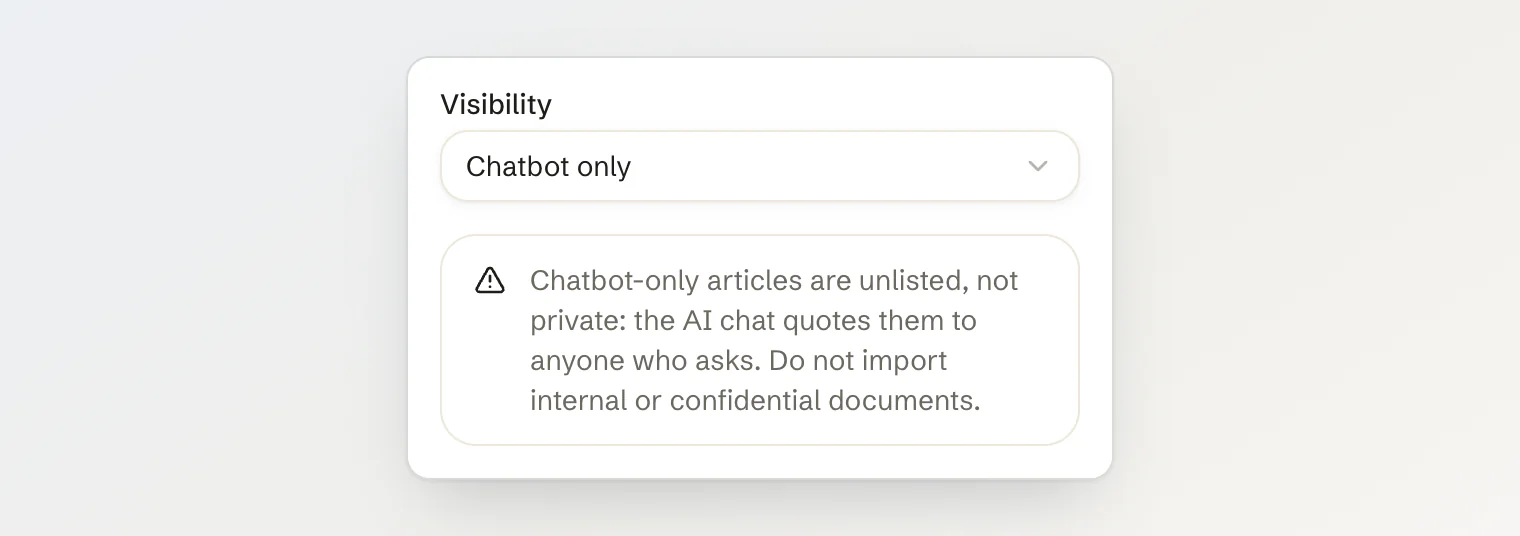
Import only what you would tell a customer. Internal runbooks, contracts and anything with customer data should stay out of your help center altogether.
Pages each month
Imports count pages against a monthly allowance of the account that owns the project:
Free | Pro | Ultra | |
|---|---|---|---|
Import pages a month | 50 | 1,000 | 5,000 |
A PDF counts its pages.
An image counts as one page.
Any other file counts one page for every 3,000 characters of text, or part of them.
The Import files tab shows the pages used this month. A file is counted once, even when its import is retried. A file refused before its pages are counted, because it is damaged, password-protected or too long, costs nothing. The allowance resets on the 1st of each month at 00:00 UTC.
When an import fails
Message | What to do |
|---|---|
This file can't be read | The file is damaged, or its contents don't match its extension, such as a renamed file. A password-protected Word file shows this too. Open it on your computer and save it again in the right format, without a password. |
This file is password-protected | The PDF has a password. Remove it and import the file again. |
This file has no text to import | The file is empty, a Markdown, HTML or Word file holds nothing but images, or none of its scanned pages could be read. |
This file is too long to import | Split it into files under 300 pages and 1.5 million characters. |
You've used this month's import pages | The month's pages are used up, or the file has more pages than are left this month. Wait for the 1st of the month, split the file, or move to a larger plan. |
The import failed | Something went wrong on our side. Import the file again. |
The original file
Kookee keeps the original file privately with the article it became, and deletes it when you delete the article. To download it, click the file name in the Imported file card. The originals of failed imports are deleted after 30 days.
Long articles and the AI chat
Imported manuals tend to be long. When a visitor asks a question, the AI chat finds the passages that match it anywhere in an article, so an answer can come from page 40 of a manual, not only from its first page. See Building a help center with search and AI chat.
Finding those passages takes indexing: every published article, and every change to one, is indexed with the project owner's monthly AI embedding tokens (2,000,000 on Free, 20,000,000 on Pro, 50,000,000 on Ultra), and a long manual uses many of them. Once they are used up, articles published or changed afterwards are not indexed, so search and the AI chat cannot find their passages, while the chat keeps answering from everything indexed before. Save such an article again after the 1st of the month to index it.
Continue reading
Building a help center with search and AI chat: categories, search and the chat widget that answers from your articles.
How the assistant picks its sources: why the Sources row under an answer lists the articles it was built on.
Read what visitors asked your assistant: find the questions your help center does not answer yet, and import or write the article.