Kookee tells the people in your project about the feedback they are part of. Everyone hears about new posts, and the people involved in a post hear when it is assigned, commented on or moved. Each notification arrives in the bell at the top of the dashboard and by email.
Notification | Who gets it |
|---|---|
New feedback | Every member, unless they turned New feedback off |
Assigned to you | The person a post is assigned to |
New comment | The post's author, the person it is assigned to, and everyone who commented on it before |
Post moved | The post's author, the person it is assigned to, and everyone who commented on it |
Nobody is told about their own action: assigning a post to yourself, or commenting on it, sends you nothing. Only members of the project receive these notifications. A visitor who posted on your portal is not a member, so they are not emailed when their post moves.
A few details keep the count down:
Mentions come first. A member you @mention in a comment gets the mention notification, not a second one for the comment.
One notification per move. Moving several posts to a column at once sends each person one notification, such as "Maya moved posts to Planned: 3", not one per post.
A member who leaves stops hearing. Notifications go only to people who are in the project when the change happens.
Turn off new feedback notifications
On a busy board, everyone hearing about every post is noise. The Team page has a New feedback switch for each member. Turned off, that member gets no notification for new posts and no digest of new messages from the site widget. They still hear about posts they are assigned to, comment on or wrote.
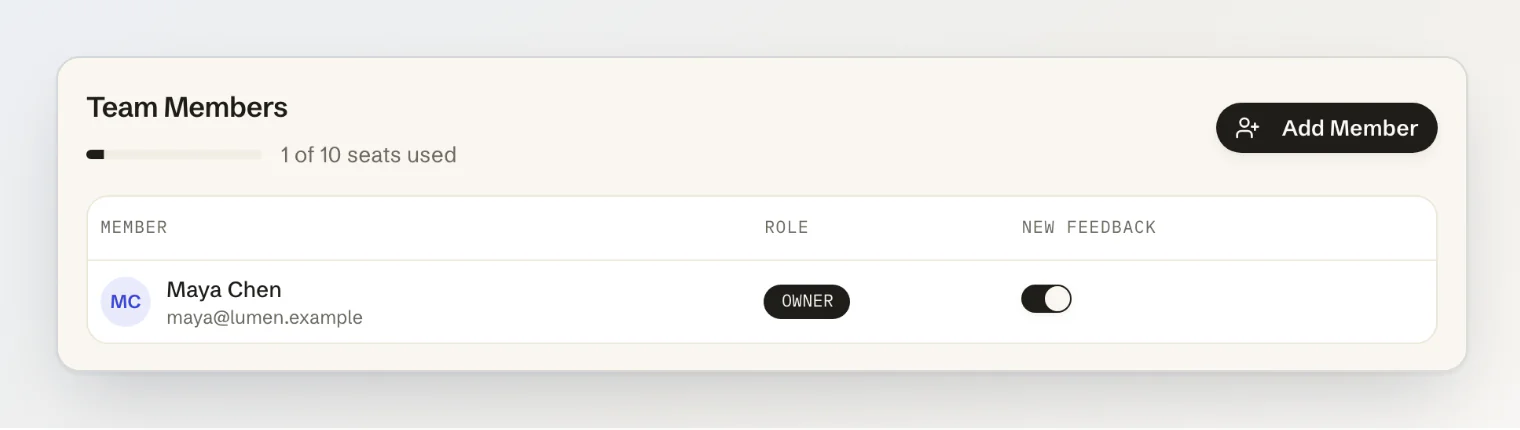
Each member can turn their own switch off and on. Owners and admins can set it for anyone, for example to keep new posts with the people who triage them.
Webhooks and integrations
The project owner also hears when Kookee turns off one of the project's webhooks or integrations, with what went wrong. To post new feedback into a Slack, Discord or Telegram channel your whole team reads, connect an integration instead of relying on email.
Uptime monitors
When an uptime monitor goes down, the owners and admins of the project get A monitor is down, and A monitor is up again when it recovers, in the bell and by email. A monitor that has never been up sends A new monitor is failing instead. The New feedback switch does not turn these off. To post outages into a team channel, tick Monitor down and Monitor up again on a Slack, Discord or Telegram integration.
Continue reading
Connect Slack, Discord, Telegram, GitHub, Jira, Asana or Freshdesk: post new feedback where your team already talks.
Inviting your team to a project: roles, invite links and seats.
Triaging feedback from an AI assistant: assign, move and tag posts from Claude or ChatGPT.